
View Canvas Assignments as a Student
Written by Jeremy Neece
How do I view Assignments as a student?
This article discusses the steps taken to view course assignments in Canvas LMS from the Assignments page.
Who Can Use This Guide?
Any student enrolled in the course can search for assignments.
Considerations for Viewing Assignments
- Your instructor may choose to hide the Assignments link in Course Navigation. If the Assignments link is not available, you can still access Assignments through your user or course dashboard, the Syllabus, Gradebook, Calendar, or Modules.
- If the assignment you are accessing displays differently, your assignment may be using the Assignment Enhancements feature. Learn more about viewing assignments using Assignment Enhancements.
How to View Assignments as a Student
Open Assignments
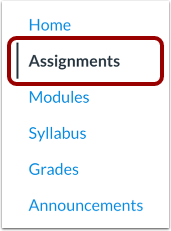
In Course Navigation, click the Assignments link.
View Assignments Index Page
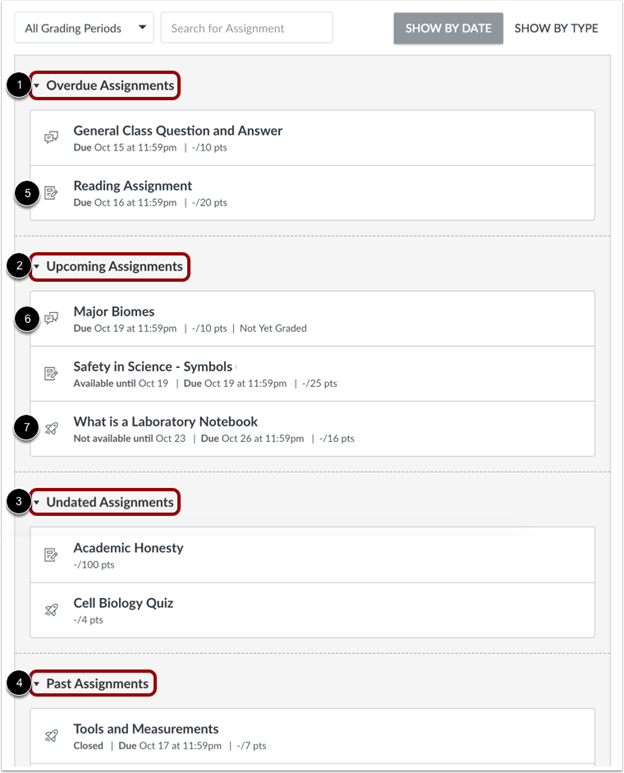
In the Assignments Index page, you can view all the assignments in your course.
By default, assignments are grouped by overdue assignments, upcoming assignments, undated assignments, and past assignments.
- Overdue Assignments [1]: assignments and discussions that are past the due date, are still available, have not been submitted, and have not been graded.
- Upcoming Assignments [2]: assignments, discussions, and quizzes that have an upcoming due date.
- Undated Assignments [3]: assignments, discussions, and quizzes that do not have a due date.
- Past Assignments [4]: assignments and discussions that are past the due date and either are not available, have been submitted, or have received a grade; quizzes that are past the due date.
Each assignment also includes an icon with the assignment type: assignment [5], discussion [6], or quiz [7].
Note: The Assignments Index page supports keyboard shortcuts. To view a list of keyboard shortcuts, press the Shift+Question Mark keys simultaneously on your keyboard.
View Assignment Summary

Each assignment displays the assignment name [1], availability dates (if any) [2], due date (if any) [3], and points possible [4].
View Availability Dates
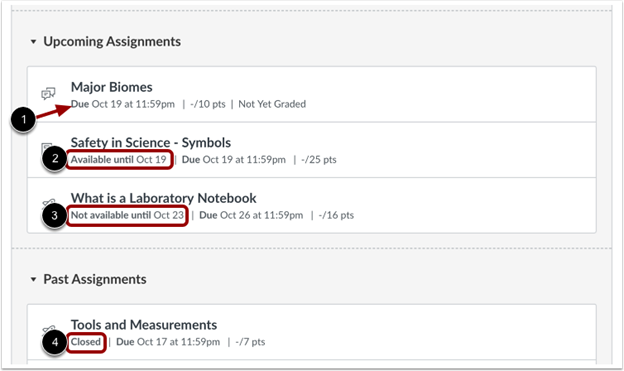
The first dates you may see are called availability dates. Sometimes your instructor only wants you to submit an assignment during a specified date range, so the available dates are the range of time that the assignment is accessible to you.
- If the assignment does not have a date listed [1], the assignment is open; you can submit the assignment at any time during your course.
- If the assignment says Available until [date] [2], you can submit the assignment until the specified date.
- If the assignment says Not Available Until [date] [3], the assignment is locked until the specified date.
- If the assignment says Closed [4], the assignment cannot accept submissions.
Note: If the listed date is set to 12 am, the last day for the assignment to be submitted is the full day before the listed date. For instance, if an assignment is Available until December 15, you can access the assignment until December 14 at 11:59 pm.
View Due Dates
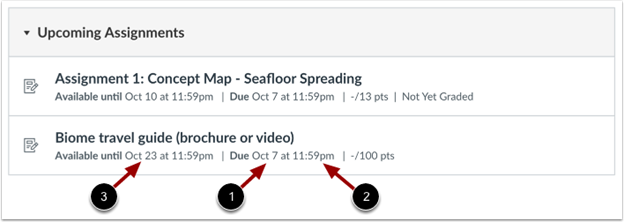
An assignment may display a second date, which is the Due date [1]. Any assignments submitted after the due date are marked as late; some instructors may deduct points for late submissions. Again, not all assignments may include a Due date.
Due dates also include a time [2]. If your instructor does not set a due time, the listed date displays the course’s default due time.
You can still submit late assignments before the Available until date [3].
Please be aware that the Due date may be before or on the Available date.
Filter Assignments

To view the details of an assignment, click the name of the assignment.
View Assignment
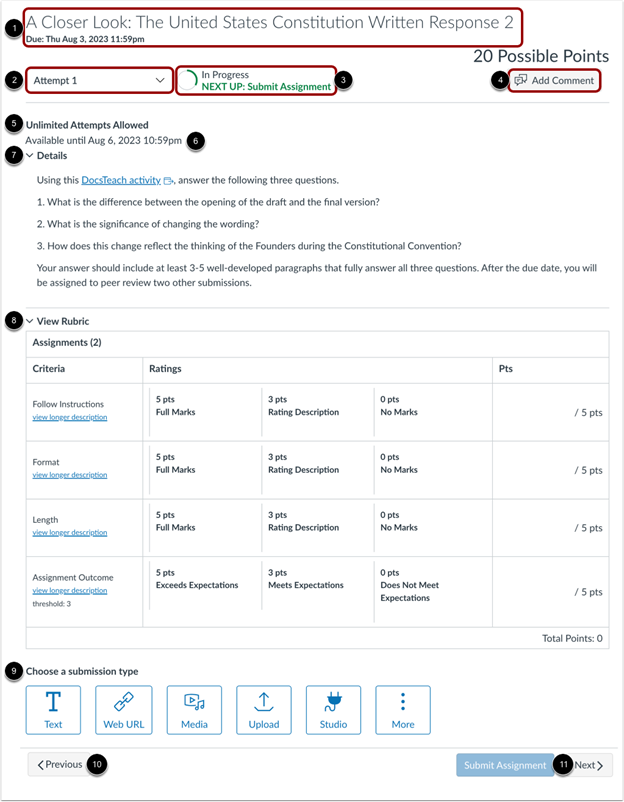
The Assignment Summary header displays the assignment title, due date, and points possible [1]. Not all assignments may have a due date.
The Attempt drop-down allows you to view your submission attempts for the assignment [2]. By default, the Attempt drop-down displays your most recent submission attempt.
The Progress Tracker displays the assignment submission and grading status [3].
To add an assignment comment for your instructor, click the Add Comment button [4].
View the number of allowed attempts [5] and availability dates [6].
If your instructor added assignment instructions, they display in the Details section [7].
If a rubric has been added to the assignment, the View Rubric section automatically expands to display the assignment rubric [8].
If the assignment is accepting submissions, you can select a permitted submission type from the Choose a submission type section [9].
Notes:
- If your assignment is part of a module, you can view the previous module item by clicking the Previous button [10] and the next module item by clicking the Next button [11].
- Assignment instructions can only be downloaded if your instructor has included a link to download them. You can also print the screen or copy and paste the directions into a word processing program. You can also view the assignment in the Canvas mobile app.
- If the assignment allows multiple attempts and is within its set availability dates, you can resubmit the assignment.
View Assignment with Availability Dates
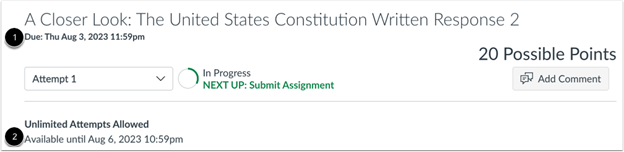
When you access an assignment during its set availability dates, you can view all available assignment information. Availability dates may include a first available date (open date), last available date (locked or closed), or both dates to create an overall date range. The Due date may be before or on the last available date (if one is set).
If you were to miss the assignment submission due date [1], you could still submit the assignment until the last available date [2]. Once the last available date passes, you can no longer submit the assignment.
View Assignment with Limited Attempts
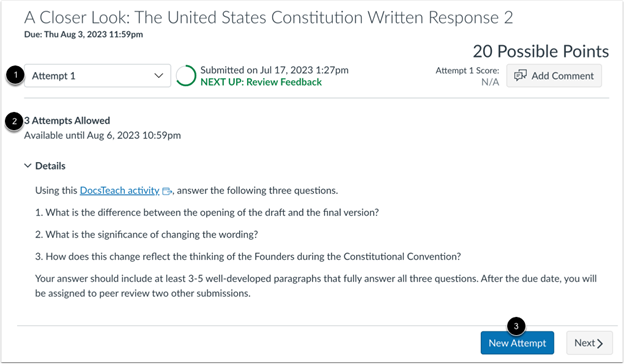
Your instructor may limit the number of submission attempts you are allotted for an assignment. If your assignment has a limited number of submissions, you can view your submission attempts [1] and the number of allowed submissions for the assignment [2].
Once you have used all your submission attempts, the New Attempt button will disappear [3].
View Locked Assignment
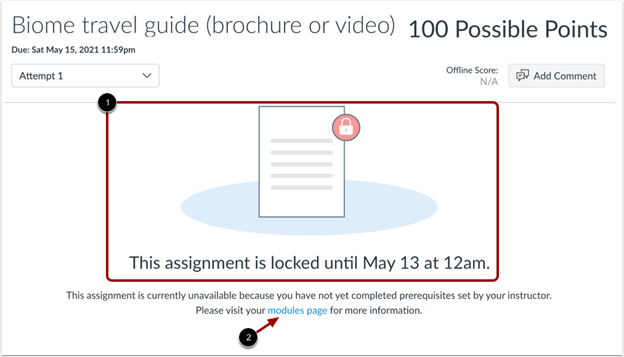
If an assignment is not within its set availability dates, you cannot view assignment details nor submit or resubmit work.
Locked assignments display locked icons and messages [1]. If your assignment is locked due to module prerequisites, you can view course modules by clicking the modules page link [2].
View Assignment Score
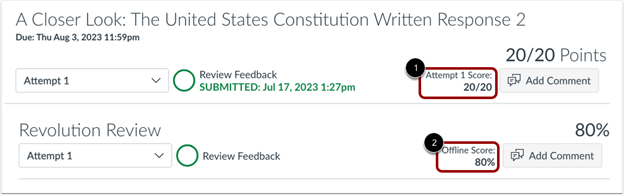
If your assignment has been graded by your instructor, you can view the score for each attempt [1]. If your assignment has been graded without submission, you can view your offline score [2].